Library Catalog Migration
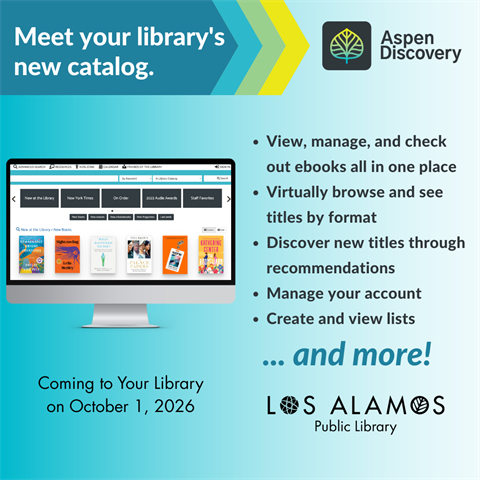
The Los Alamos Public Library is excited to share that we have upgraded to a brand‑new software system. This transition is part of our ongoing effort to modernize our tools so we can offer faster service, a more reliable catalog, and a smoother overall experience for patrons. Access the new catalog at catalog.losalamoslibrary.org.
Here are some frequently asked questions about the new catalog. If you do not find the answer to your question here, please reach out to library staff for assistance.
Why did the Library change the catalog?
We've transitioned to Aspen Discovery to improve your library experience. This powerful platform not only simplifies your search but also evolves based on community feedback, ensuring you always have the best tools at your fingertips. Aspen Discovery is an open-source, full-featured library discovery interface that integrates search results from physical catalogs, digital content (like Libby and Hoopla), and website resources into a single, user-friendly search experience.
Can I access my account and personalize my catalog experience?
Yes. When you log in to your account, you can view your current checkouts and holds, including any items that are ready for pickup. You can also see the holds you’ve placed in Libby. From your account, you can choose to save your checkout history, create new lists, and track the status of any items you’ve requested the library to purchase.
Under Account Settings, you can manage your contact information and preferences, choose how you want to receive messages and notices, link additional accounts, and reset your PIN. You can also select your preferred and alternate pickup locations for your holds.
Can I save my search results and create lists?
Yes. You can save searches and create public or private lists from your user account profile. You can also share lists with other users, such as members of your book club. In addition, you can save a search term and receive notifications when new items matching that search are added to the library.
To receive notifications for a saved search, log in to your account and go to Account Settings. Select Preferences, then scroll to the section labeled “Searching.” Turn on the option that says “Notify me by email when new titles are added to my saved searches.”
How do I track my reading history?
Log in to your account and click on Reading History from the drop down under your user name. Choose Start Recording My Reading History. You'll be able to see what you have checked out from the library from this point on. To protect your privacy the library does not track your history, so you must opt in. Watch this short video to learn more about turning your reading history on or off.
What is a "Grouped Work"?
Aspen features grouped results when you search. This means that all the formats the library owns, book, large print, audiobook, ebook, or eaudio, are displayed together under a common title. You can then check out, or place holds, on all items including the digital titles directly from the Aspen catalog.
Can I see my physical and digital checkouts together?
Yes. After logging in to your account you can view your checkouts, holds, and statuses for physical items alongside digital titles from Libby and Hoopla.
Can I get text message alerts about my library account?
Yes. You can choose to be notified by text message when you have a hold that is ready to be picked up. Review the Privacy Statement and Messaging Terms and Conditions.
Can I choose which messages I receive and how I receive them?
Yes. You can change which messages you receive and how you get them whether SMS, email, or phone by logging in to your account and under Account Settings choosing Messaging Settings. You can also elect not to receive messages.
Can I use the Aspen Catalog on my phone?
The Library's new catalog is mobile responsive which means you can use it on your computer or on your phone or other mobile device and it will automatically resize for comfortable viewing.
How do I place a hold?
Click the Hold button next to any item in your search results list, log in with your library card if prompted, and select your preferred pickup location. Watch this short video to learn more about placing holds.
Does Aspen give reading recommendations?
Yes. Once you have rated a few titles in the Aspen catalog, you will start to see personalized recommendations based on what you enjoyed. To rate titles log in to your account and click on the number of stars, located under the book cover, you would give that title. Five stars is the highest rating. You are prompted to provide a review but this is not required. Aspen will also suggest "while you wait" titles when you place a hold based on your ratings so the more you rate the better your results will be. View the titles you have rated by clicking on your name to access your account and choose Recommended For You. From here you can remove or change your ratings.
Does the Aspen catalog use AI to make recommendations?
No. Aspen uses a built in algorithm that looks at the catalog records for all the items the library owns. Based on the item you rated, the algorithm looks for similarities in: subject, topic, awards, author, era, genre, geographic information, MPAA ratings, and accelerated reader ratings.
How can I pay any fees that are on my account?
You can view any fees on your account by logging in to your account and clicking on Fees. Currently, the library accepts only cash or checks made out to Los Alamos County as payment although we are working on the ability to pay for fees with a credit card.
Can I link my family's accounts?
Yes. You have the option to link your account to another account holder such as your minor children. Linking accounts requires the other account holder to accept the link and this can be revoked by either party at any time. By linking the accounts you will be able to manage the other patron's account with your log in. To set this up log in to your account and go to Account Settings. Click on Linked Accounts and Add an Account. You will be prompted to enter the account credentials for the other patron. To complete the process the other patron will need to log in to their account and accept the link.
If you have not found the answer to your question here, please reach out to library staff for assistance.